Understanding Projects
Set up your first Project so Claude can keep your business context, instructions, and files together — without starting from scratch every time.
In this lesson, you'll learn to…
- 1Explain what a Claude Project is and why it changes everything for repeat work
- 2Write a project brief that gives Claude standing knowledge of you and your business
- 3Organize your work into Projects the way BrainTrain itself was built
The problem Projects solve
By now you know Claude's memory carries general context between chats — helpful, but it's an automatic summary of everything at once.
A Project is different: it's a dedicated workspace you build deliberately. You choose the instructions, you choose the files, and every conversation inside starts fully briefed on that specific workstream — not just vaguely familiar with you.
Tell your 'My Business' Project once that you run a home bakery, your customers are local families, and your voice is warm and playful — and every chat in that Project starts from exactly that brief.
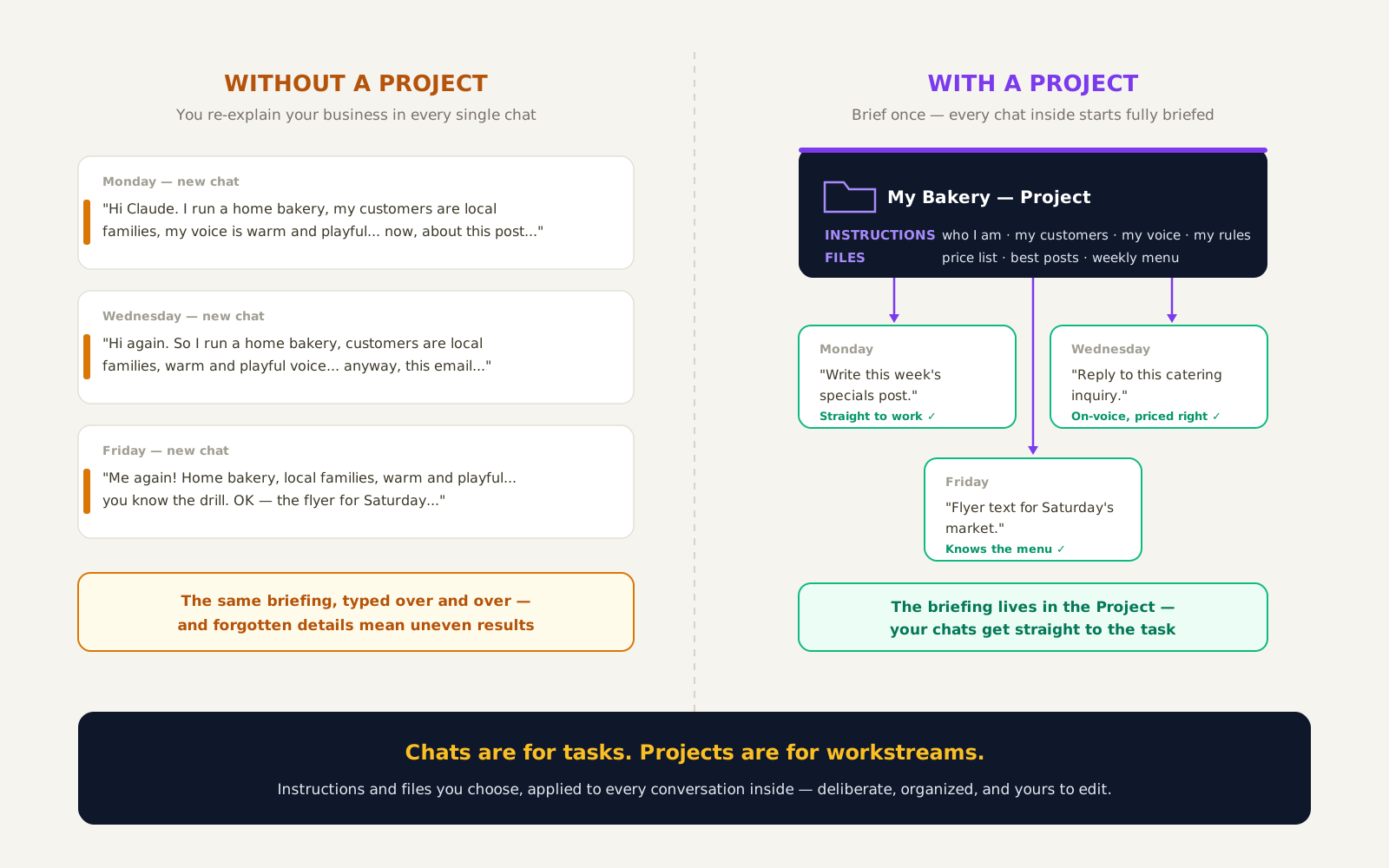
Key idea: Real build: BrainTrain AI Academy runs on Projects — one for each major ongoing workstream: the website, the YouTube channel, and the curriculum. That's the pattern — Projects for workstreams, chats for the tasks inside them.
Memory vs. Projects — what's the difference?
Both give Claude context, but they work differently — and knowing the difference is what makes you deliberate instead of lucky:
| General memory | A Project | |
|---|---|---|
| Where it comes from | Automatic summaries of your past chats | Instructions and files YOU write and choose |
| Who controls it | Claude builds it; you manage it in Settings | Fully deliberate — you author every word |
| Scope | Everything, loosely | One workstream, precisely |
| Best for | Continuity and casual recall | Repeatable, ongoing work that must be consistent |
Key idea: Memory makes Claude familiar. A Project makes it briefed. For work that matters, briefed beats familiar every time.
What goes in a great project brief
The project's custom instructions are your standing briefing. The strongest ones cover four things — then add knowledge files like your services list, best writing samples, or price sheet:
Who you are
Your business, role, and what you sell or do
Who it's for
Your customers or audience, in a sentence or two
Your voice
Three words that describe how you want to sound
Standing preferences
"Drafts under 200 words" · "always give me two options"
How to organize: start small, grow deliberately
The beginner mistake is one Project per task — twenty tiny workspaces you never revisit. Start instead with a few well-defined Projects, each built around an ongoing area of your work, and let individual conversations inside handle individual tasks.
As your work grows, add Projects when a new ongoing workstream appears — the principle is one Project per workstream, not one per task.
One Project per ongoing area
'My Business', 'Job Search', 'Content Creation' — things you'll work on for months, not days
Conversations handle the tasks
Each email, plan, or script is its own chat inside the right Project
Repeated explanations move up
If you keep re-explaining something in chats, that explanation belongs in the Project instructions
Watch out: A few well-fed Projects beat twenty empty ones. Depth of briefing matters more than number of workspaces.
How to create your first Project
The mechanics take two minutes. Here's the whole flow:
Open Projects
In the Claude sidebar, click Projects (or go to claude.ai/projects), then click '+ New Project'
Name it after the workstream
'My Business' or 'Job Search' — a name you'll still recognize in six months
Paste your brief into the instructions
Use the Project Brief Template below, or have Claude interview you with the Prompt Lab generator
Add one knowledge file
Your services list, resume, or a sample of your best writing — one good file beats five random ones
Start your first chat inside it
Ask for something real and watch it arrive already on-voice — that's the payoff
Tip: Plan note (verified July 2026): the free plan includes up to 5 Projects; Pro includes unlimited Projects plus enhanced project knowledge. Limits change — check claude.com/pricing for current details.
Module 1 complete — look what you can do now
Five lessons ago you'd never had a conversation with Claude. Now you have five real skills:
1. You understand Claude
An assistant you brief — context in, quality out, you decide
2. You pick the right tool
Claude, ChatGPT, or both — chosen by the task, not the brand
3. You're set up everywhere
Desktop, mobile, named conversations, settings dialed in
4. You converse like a pro
Brief with context, follow up, steer — conversations beat one-shots
5. You organize with Projects
Deliberate workspaces for every ongoing workstream
Pro tip: Module 2: Everyday Productivity puts all five skills to work — email, summaries, planning, brainstorming, and research. This is where Claude starts saving you hours every single week.
Prompt Lab
Every prompt below is exactly what you saw in the lesson. Copy them, use them, make them yours.
Project brief generator
Use this in a regular chat FIRST — Claude will write your project instructions for you.
I'm setting up a Claude Project for [my business / my job search / my content]. Interview me: ask me the 5 most useful questions, one at a time, then write a complete set of project instructions covering who I am, who my audience is, my voice, and my standing preferences. Make it under 300 words so it's easy to maintain.
Why it works: Claude is better at interviewing you than you are at guessing what to write. Answering five questions produces a brief you'd never have written from a blank page — and it's reusable forever.
AI Workflow View
How AI fits into the real-world process — step by step.
Brief once
Your business, audience, voice
Project
Instructions + files you chose
Every chat inside
Starts fully briefed from your setup
Consistent work
On-voice results, no re-explaining
Real build: BrainTrain itself runs on Projects — one for the website, one for YouTube, one for curriculum.
Hands-on Lab: Build Your First Project
0/5 steps done
This is the graduation exercise for Module 1 — fifteen minutes that pays off every day from now on.
Your Turn: Do It Yourself
Now it's your turn. Follow these steps and check them off as you go.
You'll know it worked when:
Claude writes an accurate, on-voice introduction with zero briefing in the message — because the Project's instructions and files did the briefing for you. That's the moment deliberate context beats starting from scratch.
Going further:
Create your second project for a different life area, and notice how keeping them separate keeps Claude's answers sharper in each.
Download Resources
Knowledge Check
4 questions — click the best answer for each scenario, then check your answers.
Question 1. What's the core thing a Project gives you that a regular chat doesn't?
Question 2. You find yourself re-explaining your refund policy in every chat inside your 'My Business' Project. What's the fix?
Question 3. Which setup follows the BrainTrain approach for a beginner?
Question 4. How is a Project different from Claude's general memory?
0/4 answered
Key Takeaways
- A Project is a deliberate workspace: instructions and files YOU choose, applied to every conversation inside — briefed beats familiar
- Let Claude interview YOU to write the project brief — five questions beat a blank page
- Start with a few well-defined Projects, one per ongoing workstream — and let conversations inside handle the individual tasks
Lesson Summary
Projects give each ongoing workstream a dedicated workspace: custom instructions and knowledge files that YOU write, applied to every conversation inside — deliberate and consistent, where general memory is automatic and loose. You used Claude to interview you, generated your own project brief, created your first Project, and tested it with a zero-context request. That completes Module 1: you understand Claude, choose the right tool for each task, are set up everywhere, converse like a pro, and organize your work with Projects. Module 2 — Everyday Productivity — puts all five skills to work on email, summaries, planning, brainstorming, and research.
BrainTrain Pro Tip
End every week with ten minutes of Project maintenance: open each Project and ask, "Based on our recent chats, what should we add or update in your instructions?" Claude will spot the gaps itself — and your Projects get sharper every single week.
Module 1: Getting Started with Claude
0/5 doneYou'll know it worked when:
Claude writes an accurate, on-voice introduction with zero briefing in the message — because the Project's instructions and files did the briefing for you. That's the moment deliberate context beats starting from scratch.
Going further:
Create your second project for a different life area, and notice how keeping them separate keeps Claude's answers sharper in each.